

Step‑by‑Step Guide: Connecting Litter‑Robot III to Your Samsung Galaxy Android Phone
In March, Kristie, who has owned a Litter-Robot II for 8 years, purchased the Litter-Robot III with Connect and had a difficult time setting it up on her Android Samsung Galaxy Amp Prime Phone. She wrote in sharing her trouble shooting process, as she thought it might help others who might be struggling with it – and asked me to share.
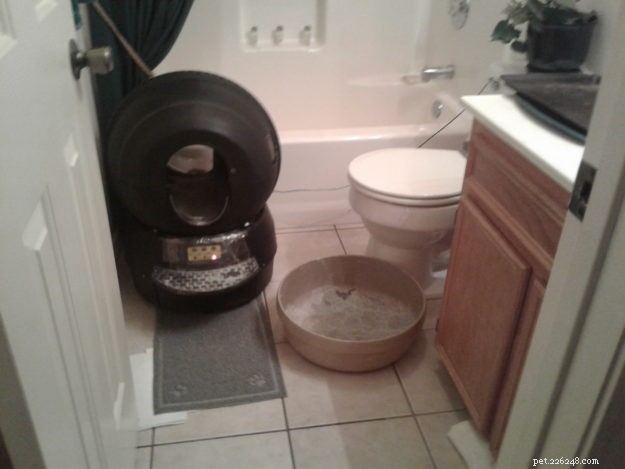
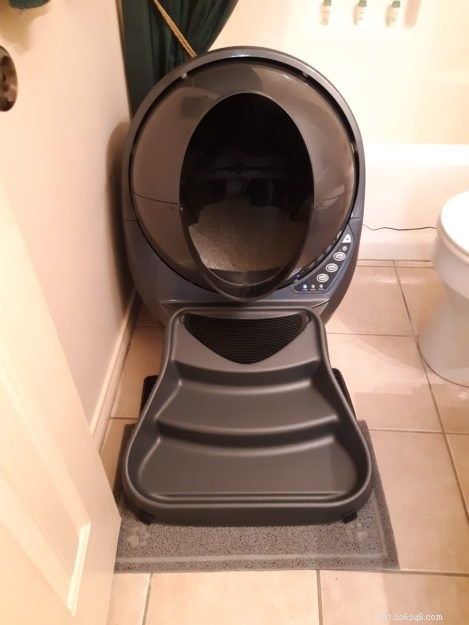
“I tried for two hours to scan the QR code last night. I tried on my tablet and that didn’t work either. Finally, as I was laying in bed cooling down from my frustration, I decided to scan the code with a different application and I downloaded the code onto my phone. Later, I printed out the code on an 8 ½ x 11 piece of paper. After it printed out in that size, my phone was finally able to capture and scan the code.
I have a Galaxy Android phone and I am sure I am not the only person that is having these scanning issues. I might just do a YouTube video regarding the ‘’how to’’ scan a Litter-Robot QR code with an Android phone.
I am attaching pictures of the issue. You might want to mention this trick to your viewers in case someone is having the same issue.
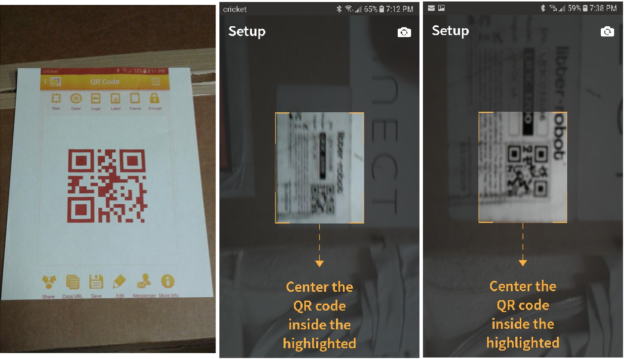
Litter-Robot also said that when you scan it, make sure you are in a well lit room. I was, it just wouldn’t capture.
I copied the code and printed it out on paper and my phone picked it up immediately. I have an Android Samsung Galaxy Amp Prime.”
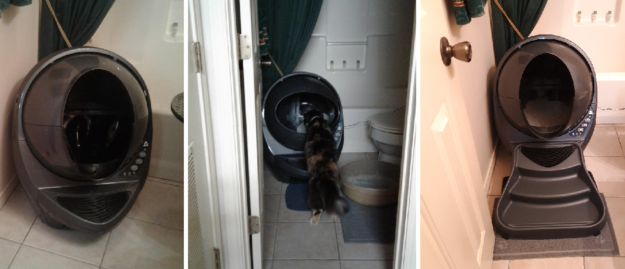
Litter-Robot also sent Kristie the following tips once they knew she had an Android phone:
“Our recommendation would be to enable “Airplane mode” before beginning to prevent the smart network switch from interfering.
Please follow the steps below.
- Reboot your router.
- Completely close the Litter-Robot app.
- Connect to your home network WiFi
- While the unit is at the Home position with the solid blue light, unplug your unit from the BASE, not the wall.
- Wait 15 seconds, plug it back in, and allow it to cycle until the solid blue light comes on (“Ready” status).
- Open the app and follow the steps.
Please make sure of the following:
1. You complete the process within 10 minutes and that you are broadcasting off 2.4 GHZ.
2. Your WiFi password has no slashes, periods, or spaces. (/ \. ) and should not be more than 32 characters long.
3. Do not let your phone “sleep”
4. Do not walk away from the unit during on-boarding.
We are so sorry for any inconveniences you have experienced. We appreciate your time and patience while working with us.
If you are still having issues on-boarding, please advise.
Here is a great video that shows you step by step on how to get everything set up with your WiFi.”
As you know, we have a Litter-Robot III with Connect, here is our unboxing video for an iPhone:
Interested in buying a Litter-Robot III?

- Pet Behavior
- Pet Breeds
- Pet Names
- Pet Adoption
- Pet Training
- Cat Stories
- Pet Health
- Adorable Pets
- Cats
- Reunite Hurricane‑Harvey Lost Pets Using Your Phone’s GPS and Facial Recognition
- Litter-Robot III: The Ultimate Self‑Cleaning Litter Box for Modern Cat Owners
- Meet Matilda III: The New Ragdoll Royalty of The Algonquin Hotel
- Step‑by‑Step Guide to Deep Cleaning Your Litter‑Robot III Inside
- Step‑by‑Step Guide: Installing Litter‑Robot III Liner Bags into the Waste Drawer
- Fixing Litter‑Robot III Yellow Light Flash: Step‑by‑Step Hard Reset Guide
- Litter-Robot: The Ideal Litter Box for Large Cats